Strip Modifiers
Reference
- Panel:
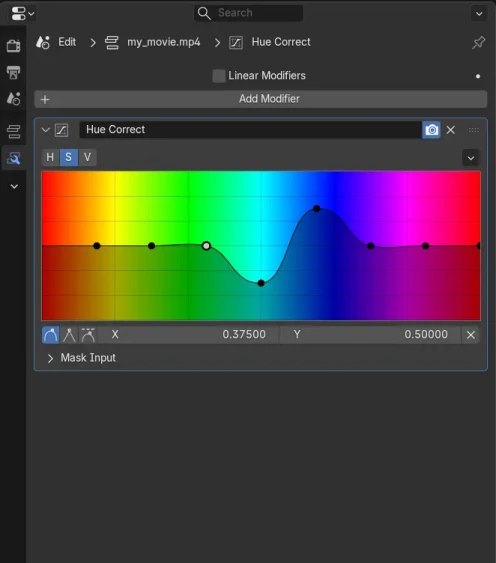
Modifiers are used to make adjustments to the image, like contrast, brightness, saturation, color balance and applying masks.
You can add these modifiers directly to a media strip, or you can use them within an Adjustment Layer strip, making them apply to several media strips in one go.
Modifier Assets
Compositor node groups marked as Assets can be used as strip modifiers.
Asset modifiers appear in the menu alongside Blender’s built-in modifiers. Assets assigned to Catalogs are organized into matching submenus.
This makes it possible to build reusable modifier libraries and share custom effects across multiple projects.
Tip
To make a compositor node group available as a strip modifier, mark it as an asset by right-clicking its data-block selector and choosing .
After saving the file, the asset will appear in the modifier menu. Existing assets created in older Blender versions may need to be re-saved before they become available.
Common Options
Each modifier provides several controls in its header:
- / Viewport
Toggles the modifier effect in the Preview region.
- / Render
Enables or disables the modifier during rendering and final output. This can be useful for comparing the strip with and without the modifier applied.
- Extras
- Duplicate Shift-D
Creates a duplicate of the modifier just below current one in the stack.
- Copy to Selected
Copies the modifier from the Active strip to all selected strips.
- Move to First/Last
Moves the modifier to the first or last position in the modifier stack.
- Show Node Group
For Compositor Modifiers, shows or hides the node group selector.
- Remove Strip Modifier
Removes the modifier from the modifier stack.
- Move Strip Modifier
Drag to reorder modifiers in the stack.
Modifiers are evaluated from top to bottom, so changing their order affects the final result.
Types
Strip modifiers include built-in image and sound modifiers as well as custom compositor modifier assets.